Configuration Guide & Checklist
Setting up your ExpoWorld Multilingual Microsite requires completing a series of Configuration Pages that define how your company, products, and services will appear online.
For a complete guide to the configuration process and a full listing of all available options, you can download the following documents:
- Multilingual Microsites - Configuration Guide & Check List.pdf.
- Multilingual Microsite - Content Check List.docx - A document you can use to collect and prepare your content before publication.
Optional: Using AI Tools
When configuring your Multilingual Microsite, you may find it useful to use an AI assistant such as ChatGPT to generate initial suggestions for:
- your subdomain name
- keywords and phrases
- your meta description
- your company description
See: Sample Configuration Instructions for ChatGPT.docx. This document can be adapted and used to generate structured content suggestions.
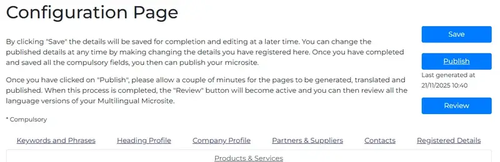
Structure of the Configuration Pages
The configuration process consists of seven sections.
1. Keywords and Phrases: Add the keywords and phrases that identify and distinguish your company, products, and services. You may also define the meta description used by search engines to summarise your Multilingual Microsite. (See also TTS’s eGuide: SEO – The Importance of Keywords and Phrases.)
2. Heading Profile:
Includes:
- company name
- logo and trademarks
- website address
- company description
- your unique subdomain
3. Company Profile
Includes information such as:
- trading address
- turnover
- number of employees
- industry sectors
- product classifications
- sales contact details
4. Partners & Suppliers
Includes:
- membership of Chambers of Commerce
- industry associations
- criteria for potential partners or suppliers
5. Contacts:
Includes contact details for:
- general enquiries
- sales
- purchasing
- business partners
- product managers
6. Registered Details
Includes:
- certifications and licences
- company registration date
- registered number and address
- VAT number
7. Products & Services
Describe your main products and services.
You may also upload supporting materials such as:
- brochures
- catalogues
- price lists
Saving Your Configuration
If you do not complete the configuration in a single session, this is not a problem.
- Clicking “Save” stores your progress so you can return later and continue editing.
- Clicking “Save” and “Publish” saves your details and publishes the Microsite online.
You can update the published information at any time by editing the details you have already entered.
Initial Publication and Search Engine Registration
When you first complete and publish your company profile, it may take up to 24 hours before your Multilingual Microsite becomes visible online.
This time is required for:
- your unique subdomain to be registered across the internet
- your site to be indexed by Google and other search engines
- your registration with Google Search Console to take effect.
After the initial publication, subsequent updates usually appear online within a few minutes.
Additional technical questions are addressed in the Multilingual Microsite FAQs.